Place search that understands Thailand
Customers can search Thai or English place names, BTS and MRT stations, districts, projects and common spelling variations.
MapScale for WordPress agencies
Add a searchable map beside your property results without changing your theme, moving your listings, or rebuilding your website. Customers can search Thai places naturally, explore an area, and open the right property faster.
Free to start · no card · first 100,000 platform calls each month
WordPress 6.4+ · PHP 8.1+ · Gutenberg, Elementor, Divi and Classic Editor
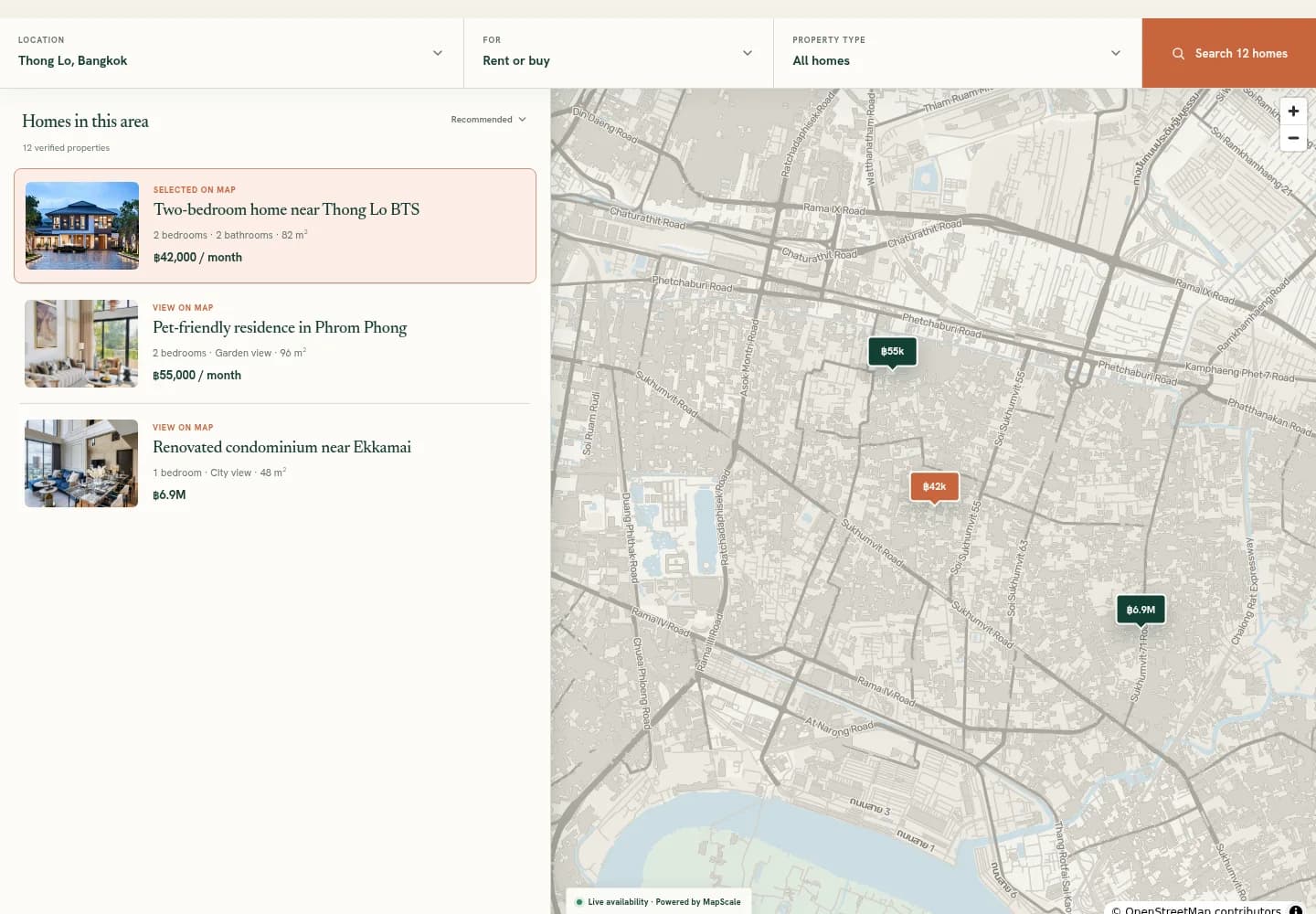
What changes for your customers
MapScale adds one complete property-search section to a page you choose. It does not replace your current website or move your data.
Customers can search Thai or English place names, BTS and MRT stations, districts, projects and common spelling variations.
When someone moves or zooms the map, the list updates to properties in view. They can explore Ari, Thong Lo or On Nut without starting over.
Hovering a result recenters the map. Clicking a marker brings its listing into focus. A shared two-way visual highlight is not included in v1 yet.
The map and results rearrange for narrow screens, with large controls, keyboard support and clear status messages.
Setup without the mystery
You can do the first and last steps yourself. If your website was built for you, your website manager can handle the middle two with the exact checklist in our guide.
In WordPress, open Plugins → Add New Plugin → Upload Plugin. Choose the MapScale ZIP, install it, then activate it.
About 2 minutesCopy your website key into Settings → MapScale. The guide shows exactly where to paste it and how to approve your website address.
About 2 minutesTell MapScale where your site stores each listing's location, price and bedrooms. Nothing is copied or entered again.
Usually 5 minutes for a site managerInsert the MapScale Property Map block. In Elementor, Divi or the Classic Editor, paste the shortcode instead. Preview, then publish.
About 1 minuteWhat v1 does — and does not do
A good fit is easier to judge when the boundaries are clear.
Yes — add a map with its own property results beside it.
Built inYes — up to 100 by default and 500 maximum, filtered as the map moves.
Built inPartly — result hover recenters the map; marker click focuses the result. One shared visual highlight is not in v1.
PartialYou can place the block there, but a one-property map preset needs a small theme customization today.
Needs helpNot automatically. MapScale adds a separate place search and map-results experience; it does not rewrite your theme's search form.
SeparateIs it worth adding?
MapScale is most useful when location is a major part of the buying decision and customers currently open many listings just to understand where they are.
Compare map searches, property opens and enquiries from the page before and after launch. Keep it if customers find relevant listings faster or your agents spend less time explaining locations.
A map cannot rescue stale listings, weak photos, missing coordinates or slow enquiry follow-up. It improves discovery; your content and sales process still close the customer.
Theme compatibility
MapScale separates those two questions so you know what has actually been tested.
Check my theme in the setup guide →Yes on the 16 freely installable themes we browser-tested at desktop and mobile sizes, including Astra, Hello Elementor, Kadence, GeneratePress, OceanWP, Neve and Blocksy.
Usually, if your theme stores one post type plus normal fields for latitude, longitude, price and bedrooms. If it uses a custom database table or combines coordinates in one field, your site manager will need a small adapter.
The public demos passed our layout-collision checks, but we have not certified their paid, installable versions without licensed ZIPs. We will not claim a full integration test we could not run.
SEO
MapScale does not change your URLs, titles, listing copy or published pages. There is no automatic SEO penalty for adding it. Like any interactive map, it adds browser work, so keep useful text on the page and test Core Web Vitals after launch.
Customer languages
Thai WordPress pages default to Thai search; other locales default to English. You can set the language per map. Chinese search and plugin interface copy are not included in v1 yet.
Privacy and control
Only published listing fields needed by the map are returned. Drafts, private posts and unrelated metadata stay private. Customer place-search text is sent to MapScale, so link your privacy notice as you would for any search provider.
Agency-owner questions
No. MapScale reads the published property posts and fields you already use. It does not migrate your listings or take over your theme.
Not for the basic upload or page block. You may need your website manager for the one-time field matching, especially if your theme stores property data in a custom way.
It shows published properties with valid decimal latitude and longitude. The default limit is 100 per map and the maximum is 500. Drafts, private listings and properties without coordinates are excluded.
Yes, from the same public search page their clients use. It can make location-based shortlisting faster, but v1 is not an internal agent CRM or saved-shortlist tool.
Any interactive map adds JavaScript and network requests. MapScale limits results by default and works with normal WordPress page caching, but the honest answer depends on your theme, hosting and listing count. Test the published page on mobile before rolling it out widely.
You keep editing listings in the same WordPress system. The map reads the latest published values; there is no second MapScale inventory to maintain.
Deactivate the plugin and remove its block or shortcode. Your theme, listings and WordPress data remain in place because MapScale does not rewrite them.
The setup guide checks the website key, approved website address, listing field names, published status and coordinates in order. Those are the common causes, and each can be fixed without rebuilding the page.
A low-risk next step
Install the plugin, connect a handful of published listings and see the real result in your own theme. Nothing changes on your live search page until you choose to publish it.